Razwan's Essence
Early life
Razwan's Art Theory
Razwan's Training
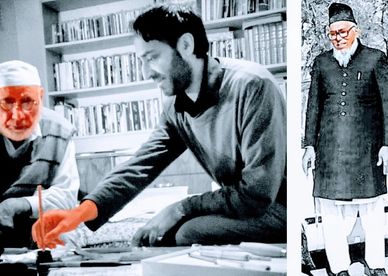
Artist Razwan Ul-Haq is a QEST scholar (QEST Royal Warrant Holders Association) who began Arabic calligraphy using hand cut bamboo pens whilst growing up in Lancashire, England. Initially inspired by his Uncle, the award winning Arabic Calligrapher and scribe Maulvi Fazal Azeem, Razwan Ul-Haq has spent his life creating visual art out of distilling traditional Arabic Calligraphy techniques. You are invited to enter a parallel world. Of words. Letters. Meanings. His practice has given birth to new forms and experiences, yet, is a homage to over a thousand years of classical Arabic and Persian calligraphy. Razwan went onto study at UMIST and then the University of Manchester.
Razwan Ul-Haq’s work cuts across many themes and has featured in the national press including the Times, BBC, Channel 4 as well as internationally, such as USA Today. His past commissions include being approached by Leeds City Art Gallery to celebrate the presence at the Gallery of ten drawings by Leonardo Da Vinci, on loan to the Gallery from the Royal Collection to celebrate the 80th birthday of the Queen. He is not related to any member of the Royal family.
Razwan's Training
Razwan's Art Theory
Razwan's Training
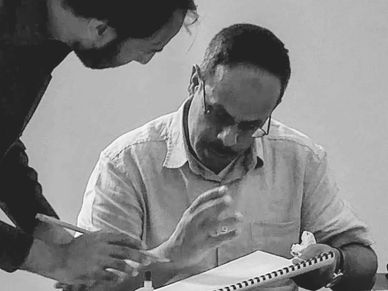
Razwan’s absorption of classical Arabic Calligraphy is the beating heart of his contemporary pieces. After his grounding in traditional calligraphy of North Pakistan, he received instruction from eminent Masters such as the Jordanian Calligrapher Nasser Mansour and current mentors include the Persian Master Calligrapher Karamat Fatinia. He is influenced by traditional calligraphers such as Amir Khani and contemporary artists Hassan Massoudy and Ahmed Moustapha.
For Razwan, the sayings and work of Master Calligraphers from history provide a bridge to contemporary calligraphic interpretations.
Razwan does not consider himself as a Master Calligrapher, rather as a bridge to connect the inner and outer workings of words into a form for the public.
Razwan's Art Theory
Razwan's Art Theory
Razwan's Art Theory
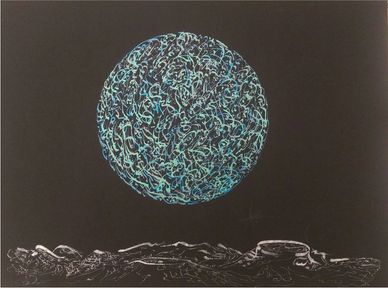
Razwan explores the way words as visual form distil perceptions and meaning. Can the process of art lend energetic clues to life’s mystery? Perhaps this means calligraphy is more than mere words, filtering various human endeavours onto one visual form. Is it possible to shine mathematics, philosophy, physics, theology and literature through the prism of craft?
Razwan further distils traditional Arabic calligraphy through meditative breath work that is prevalent in some aspects of Japanese and Chinese Calligraphy. The modern art scene is also incorporated in some of Razwan’s work. Though all his ideas begin with traditional hand-cut bamboo and hand-mixed ink.
The addition of English Poetry in some Razwan’s art help amplify the Arabic script, and set a tone into a world that is parallel to the corporeal. Calligraphy also takes centre place in Razwan’s fiction and his peer reviewed prose discuss Islamic Art. Razwan has written at length on the relationship of universal human concepts such as mansub (proportion) fitra (nature) and adaab (ethics).
publications
exhibitions, talks and projects
Razwan's Art Theory
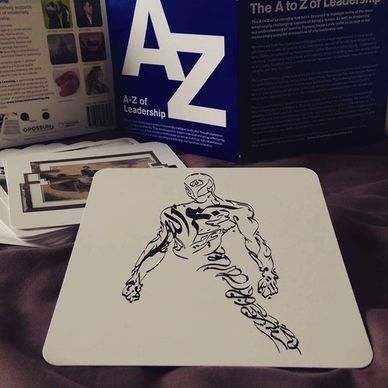
The Last Sufi Series, sci-fi novel, 2004
The Calligraphy Pirate Series, children’s fiction, 2006
Islamic Art: The Teacher’s Book, Teaching Resource, 2007
Teaching Materials, University of Cumbria, 2008
Black Taj Mahal, fantasy novel, fantasy 2010
Sultan Vs. Dracula, sci-fi and fantasy novel, 2012
Viewpoints, Peer Reviewed Paper, JIABR, Emerald Publishing, 2012
Teaching Islamic Art, RE Today, 2016
Sufism, RE Today, 2019
exhibitions, talks and projects
exhibitions, talks and projects
exhibitions, talks and projects
Universal Paradox tour, Nationwide, 2004
Commission to celebrate 80th birthday of Queen Elizabeth, Leeds City Art Gallery 2006
Postmodern Calligraphy, Abbot Beyne Art Gallery, Staffordshire 2006
Conceptual Arabic Art Exhibition, Bury, 2007
Islamic Art Calligraphy Workshops, Tullie House Museum, Cumbria 2008
Postmodern Calligraphy II, Abbot Beyne Art Gallery, Staffordshire 2011
Breathing Calligraphy, Samye Ling Monastery, Scotland, 2012
Spiritual Calligraphy, Pates Gallery, Cheltenham, 2013
Bradford Festival, Arabic Calligraphy, 2014, 2015, 2016
Key Note Speech on Islamic Art, RE Conference, Wells Cathedral, 2014
Bradford Boogie Woogie, Permanent installation, Manningham, Bradford, 2014
Arts Council Award, 2014
Al-Khatt Al-Mansoub, Exhibition, Walker House Art Gallery Wakefield, 2014
Sultan Vs Dracula Author Talk, Ilkley Literature Festival, 2014
Islamic Art in the North of England, Panelist, University of Central Lancashire, 2015
Sultan Vs Dracula Author Presentation, Huddersfield Literature Festival. 2015
Sultan Vs Dracula Author Panelist, Bradford Literature Festival, 2015
Islamic Art & Meditation Workshops, Ilkley Literature Festival, 2014, 2015
Faith in Art Exhibition, Craven Museum, 2016
Asian Voices Exhibition, Leeds City Museum, 2016
Islamic Science-Fiction Panelist, Bradford Literature Festival, 2016
Garden within a Garden Exhibition, Cartwright Hall Art Gallery, Bradford, 2016
Breathing Calligraphy Exhibition, Kala Sangam Art Gallery, Bradford, 2016
Not Just Hockney, Big Screen Showing, Bradford, 2017
RE Today Teacher’s Conference, Worcester & Hereford, 2017
The Journey of Nastaliq Calligraphy, Peace Museum, Bradford, 2017
Islamic Calligraphy, Minimalism, Panelist, University of Birmingham, 2017
Islamic Calligraphy and Zen, University of Glasgow, 2017
Oppenheim-John Downes Memorial Trust Award, 2018
Arts Council Award, 2018
Lecture, Bootham School, York, 2018
Phobiastan Launch, Bradford M M Mela 2018
Phobiastan Book Launch, Ilkley Literature Festival, 2018
Phobiastan and the Graphic Novel, Holmfirth Library, Phobiastan, 2018
Phobiastan readings and panelist, MACFEST, Manchester, 2018
Arts Council Award, 2019
Burberry Inspired, Arabic Calligraphy Project, Leeds Playhouse, 2019
Arabic Nastaliq Calligraphy Lecture and workshop, Writing: Make Your Mark, various sites, British Library, 2019
Visiting Lecturer, Islamic Arts, Cheltenham Ladies College 2016, 2017,2018, 2019, 2021, 2022
Visiting Lecturer, Islamic Arts, Ullswater Community College, 2015, 2016, 2017, 2018, 2019, 2021, 2022, 2023
Arabic Art of Phobiastan workshop, Middlesbrough Library, 2019
Arabic Art of Phobiastan workshop, North Lincolnshire, 2019
Arabic Art wrokshops, Power of Words Literature Festival, Scunthorpe, 2019
Using Islamic Art as a tool to link diverse school communities, Amal supported Project, Hereford and Bradford. 2019
Phobiastan North of England Libraries Tour, Ripon, Selby, Whitby, Blackburn, Norwich, Halifax, Derby 2019
Phobiastan, Book Talk and Arabic Workshops, Borderlines Book Festival, Carlisle, 2019
What is a Muslim with Javaad Alipoor, Grand Junction, London, 2020
Industrialised Heart, Solo Exhibition, Bradford Industrial Museum, 2020-2021
Nastaliq Calligraphy Workshop video, National Literacy Trust, 2021
Online Arabic Calligraphy workshops and video, Blackburn Library, 2021
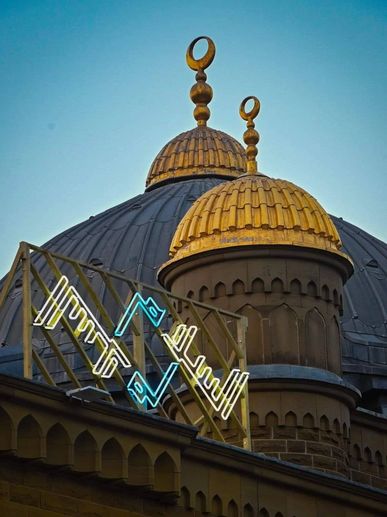
Giant Neon lights commission, MWC & the Leap, Bradford 2021
Guerrilla Calligraphy, Summer Unlocked, Bradford 2021
Nastaliq Arabic Calligraphy Workshops, Rugby School, 2022
Arts Council Award, 2022
Perfumed Verse Tour, Leeds, Keighley, Norwich Libraries, Museum of Norwich, Norwich 2022
Talk and workshop, Norwich Castle Museum and Art Gallery 2022
Calligraphy Exhibit, WEP 2023, King Abdullah University of Science and Technology, Thuwal, Saudi Arabia, 2023
Immersive Calligraphy, Van Gogh Immersive Experience, Bradford, 2023
in the media
exhibitions, talks and projects
exhibitions, talks and projects
Teachers TV, 2008
BBC TV, 2010
BBC Radio, 2012
Asian Eye, 2012
BBC Radio, 2013
Channel 4, 2013
ITV, 2014
CNN, 2014
The Times, 2014
BBC Radio 4, 2014
Asian Express, 2014, 2016
Asian Sunday, 2016
Telegraph & Argus, 2016, 2017
Asian Sunday, 2016
Asian Sunday, 2016
USA Today, 2018
Westmorland Gazette 2019
Telegraph & Argus, 2021
The National, 2021
BBC Radio, 2021
Perfume on the Radio, 2021